Template kits and page layouts
A template kit is a set of matching page and block designs. It can save days, or leave you with a site full of someone else's placeholder text. The difference is in how you use it.
What a kit contains
A typical kit has full-page templates (home, about, services, pricing, team, portfolio, blog, contact) plus smaller section templates, often called blocks: a header, a hero, a features row, a testimonial slider, a call-to-action band. Many also ship a "global kit style" file with colours, fonts and button styles, and sometimes header and footer templates for the Theme Builder.
Kits come from the Elementor Kit Library inside the editor, from template marketplaces, or as a zip you import. Envato-style kits are usually brought in with a separate importer plugin; Elementor's own kits go through Templates → Kit Library or the import/export tool.
Do it in this order
- Set the global style first. In Site Settings, define your global colours (primary, secondary, text, accent) and global fonts. Templates that use globals will update everywhere at once.
- Set the content width and breakpoints. Site Settings → Layout holds the default container width; Breakpoints sets where tablet and mobile styles start.
- Import only the pages you need. A five-page site doesn't need all 20 templates. Unused templates clutter the library and confuse whoever maintains the site later.
- Replace every placeholder before publishing. Lorem ipsum, stock team photos and invented testimonials all have to go. A fake review is worse than no review.
- Check images. Demo images are often licensed for preview only. Swap them for your own photos or images you're allowed to use.
Page layout guides
Each guide below explains one page type: its purpose, the sections it usually needs, and how to build it.
 Home page structureA proven order for home page sections (hero, proof, services, process, testimonials, call to action) and how to build each one with Elementor containers.
 About page layoutWhat to put on an About page (story, numbers, team, values), a section-by-section layout and how to build it with containers, image boxes and counters.
 Services pageLayout for a services overview page: a card grid of services, who each is for, a process section and a clear next step, built with Elementor containers and icon boxes.
 Service detail pageHow to lay out a single service page: problem, what's included, process, proof, pricing hint and a sticky sidebar with other services and a contact button.
 Pricing page and pricing tablesHow to build a clear pricing page in Elementor: two to four plans, a highlighted option, monthly/annual toggle, feature lists, and how to keep pricing tables readable on mobile.
 Team pageHow to build a team page with consistent photos, names, roles and short bios in an Elementor grid, plus tips on photo cropping and social links.
 Team member pageLayout for an individual team member page: photo, role, bio, areas of expertise, contact options, and how to reuse one template for every profile.
 Portfolio pageHow to build a portfolio page in Elementor: masonry or even grids, category filters, lightbox vs. case-study pages, and image sizes that keep the page fast.
 Contact pageHow to build a contact page in Elementor: what details to show, form fields to keep, spam protection, map embeds and making sure form emails actually arrive.
Block guides
Blocks are the reusable sections that pages are made of. Save the ones you build as templates (right-click the container → Save as Template) so the same design can be reused.
 HeaderHow to build a site header in Elementor: logo size, menu length, call-to-action button, dropdowns, mobile menu and sticky headers that don't cover content.
 Hero with background imageHow to build a hero section with a background image in Elementor: overlay for readable text, height, focal point on mobile, and keeping the image fast.
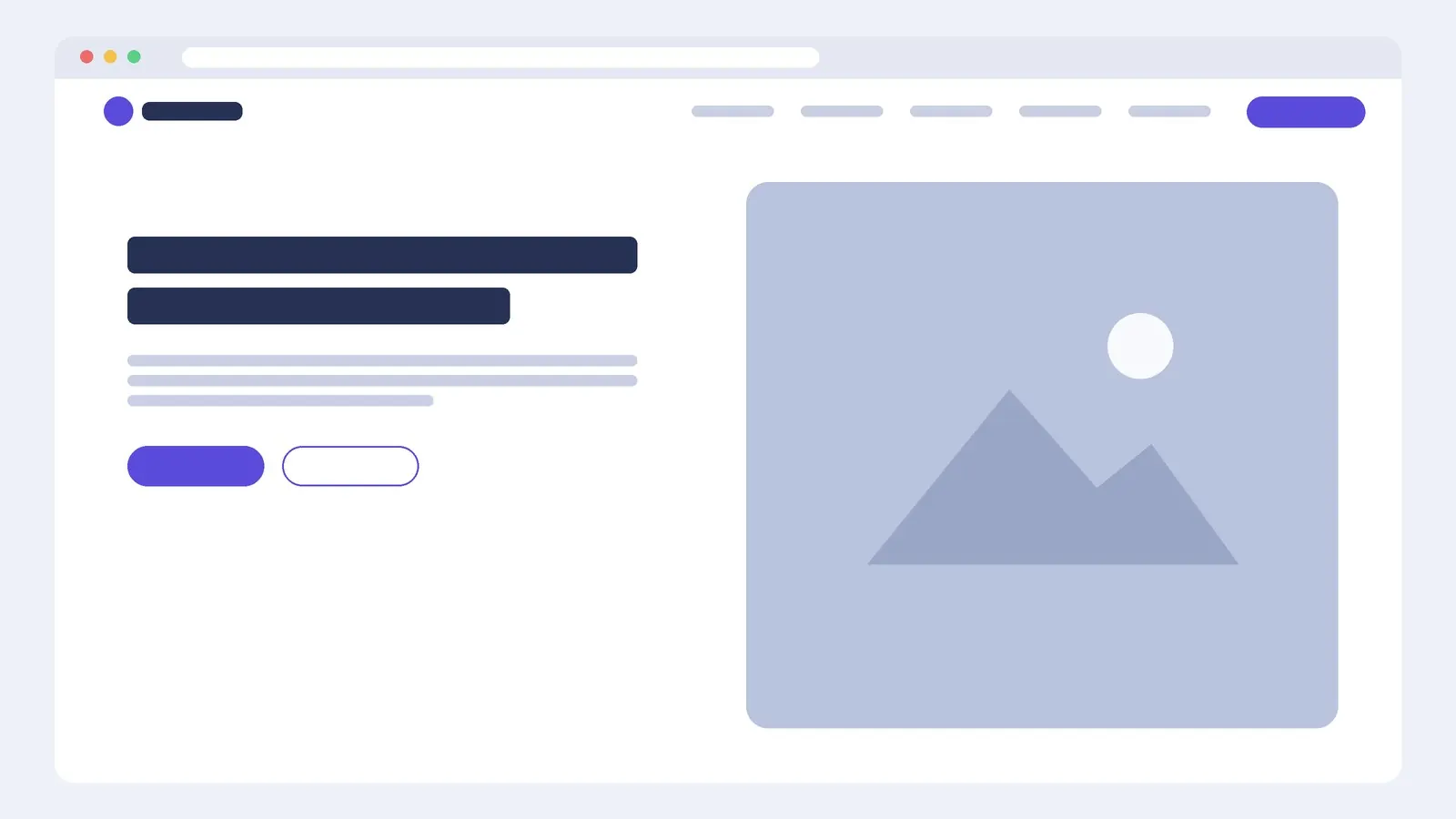 Split hero (image beside text)How to build a two-column hero in Elementor with text on one side and an image on the other, including swapping sides, stacking order on mobile and image sizing.
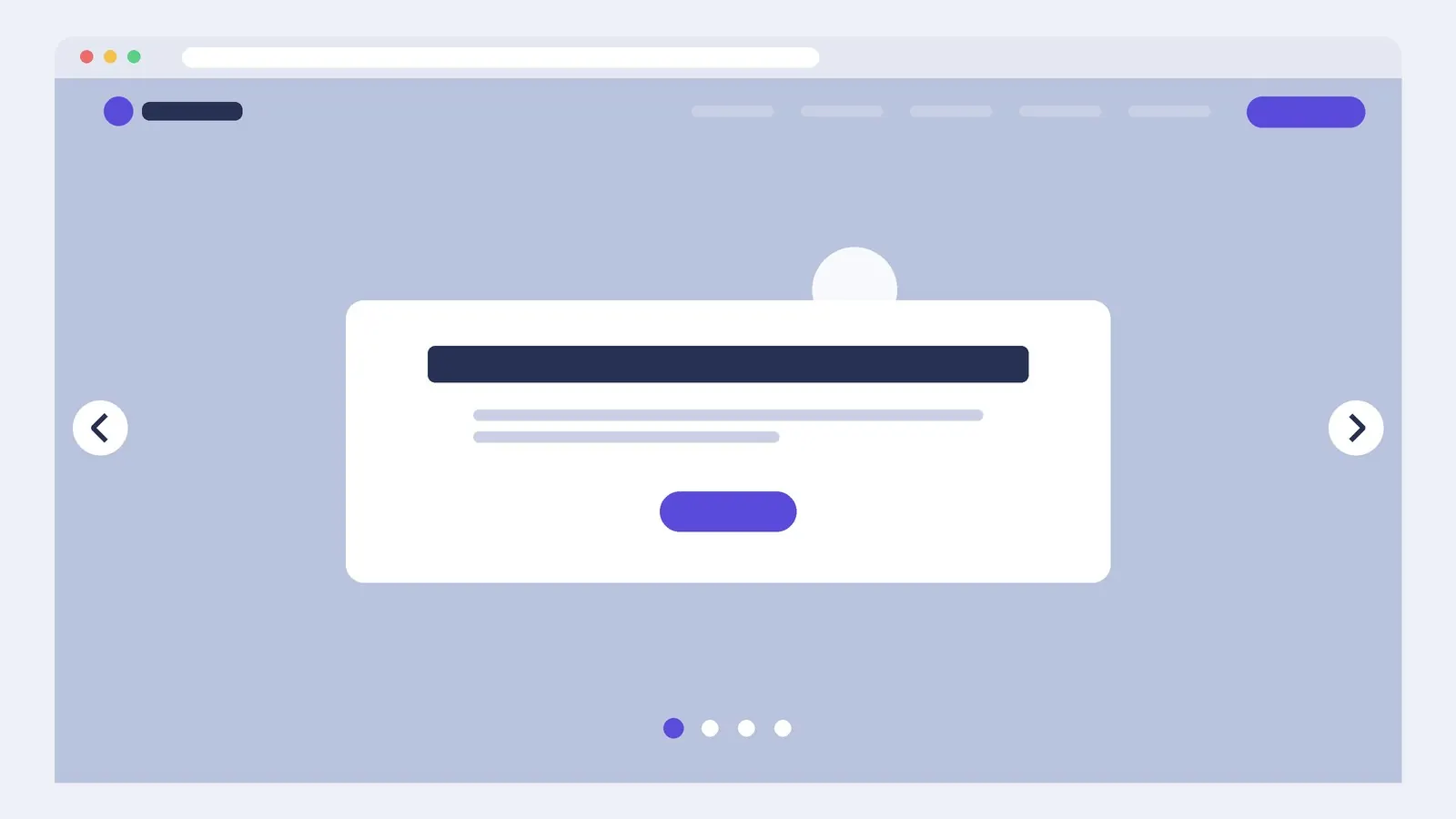 Hero sliderThe pros and cons of hero sliders, how to build one with the Slides widget or a nested carousel, and settings for autoplay, accessibility and mobile.
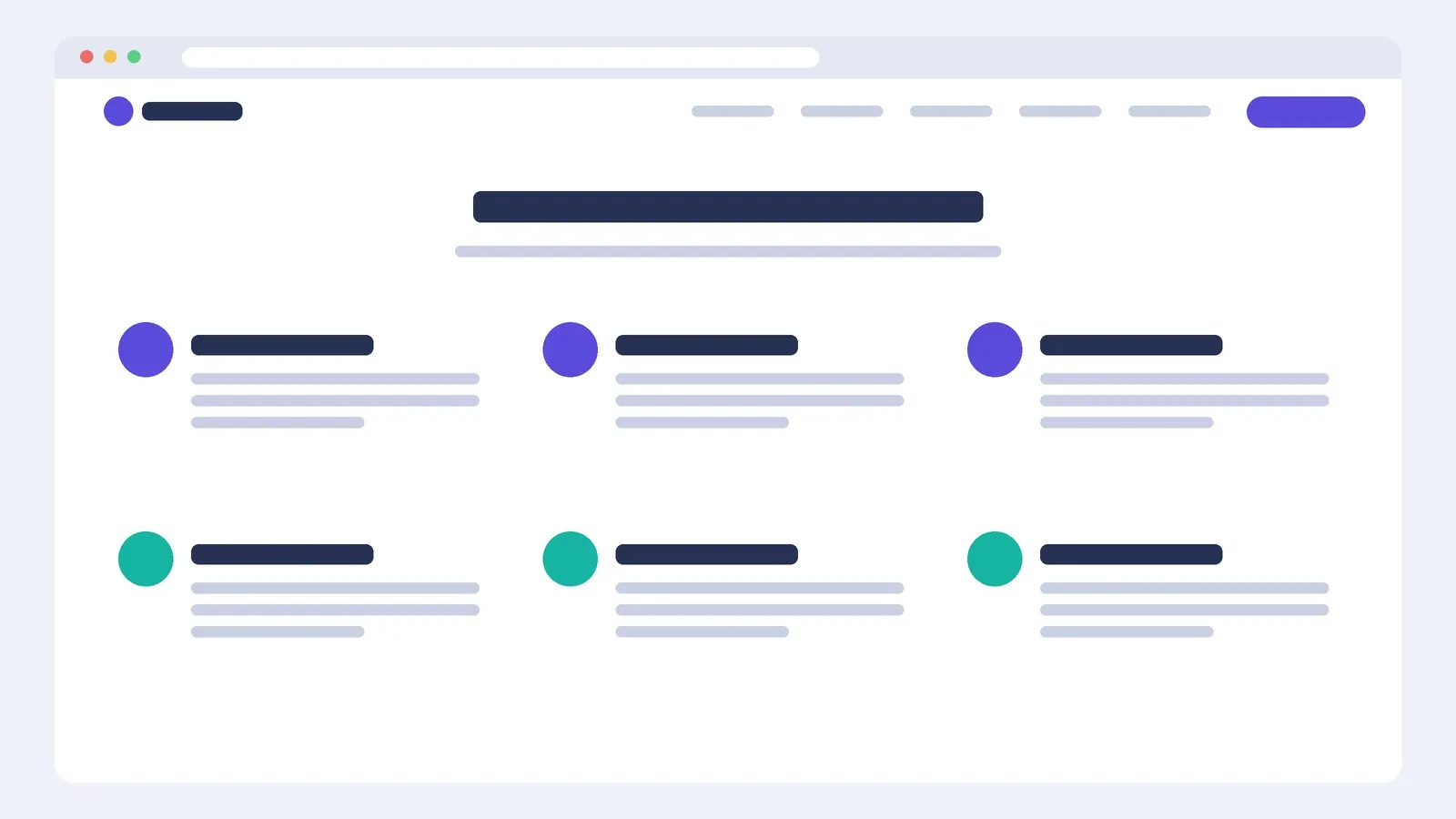 FeaturesHow to build a features or benefits section in Elementor with icon boxes in a grid, consistent icons, and copy that explains benefits rather than listing specs.
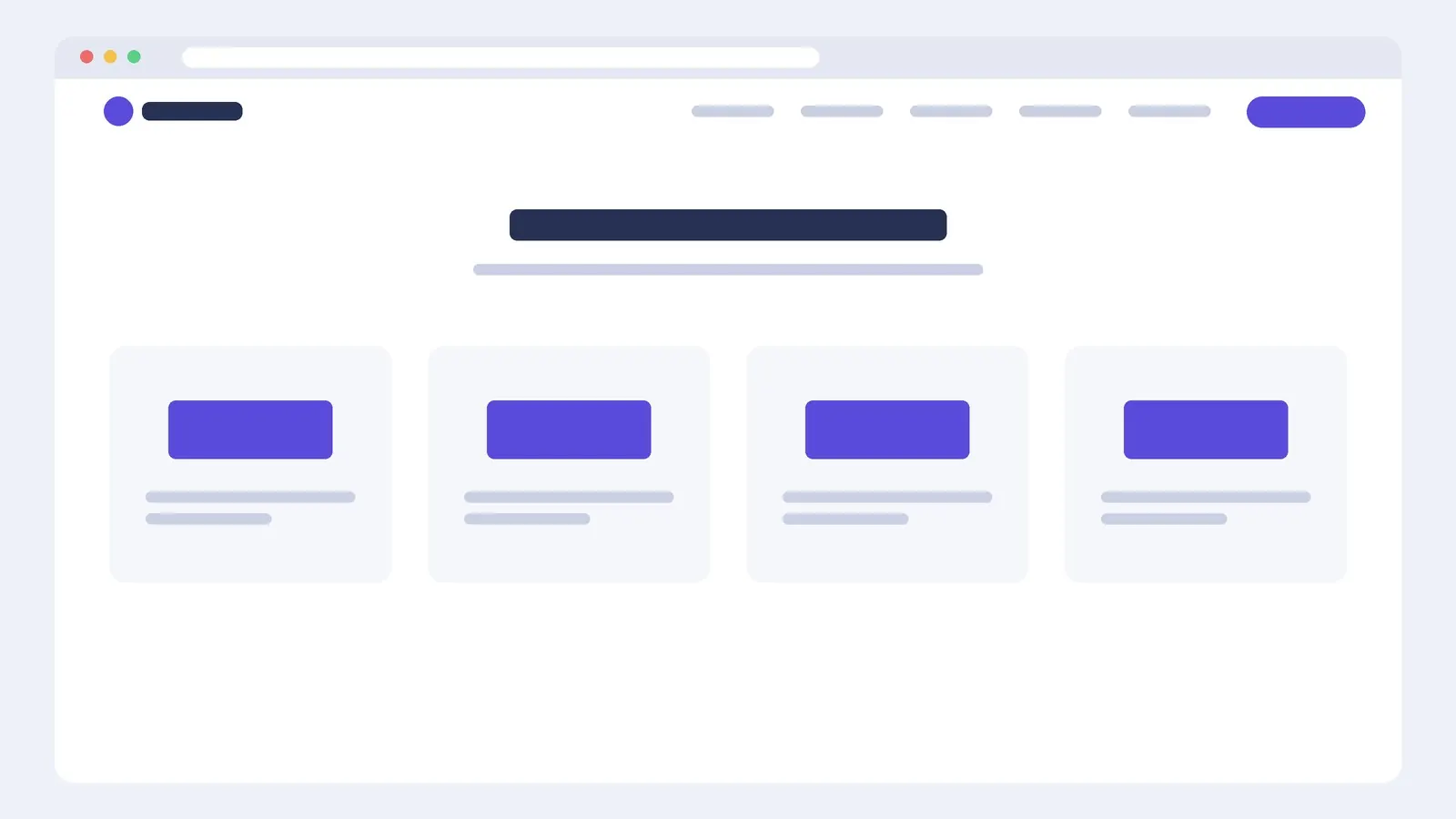 Counter (numbers)How to use Elementor's Counter widget for statistics: choosing honest, meaningful numbers, prefixes and suffixes, animation duration and accessibility.
 Call to actionHow to build a call-to-action band in Elementor: one clear action, specific button text, contrast, placement on the page and the Pro Call to Action widget.
 TestimonialsHow to show testimonials in Elementor with the Testimonial and Testimonial Carousel widgets, what makes a quote credible, permission and avoiding fake reviews.
 Project (case study)How to present a single project or case study in Elementor: hero image, key facts row, challenge-approach-result text and supporting images.
 Skills (progress bars)When progress bars make sense, how to build them with Elementor's Progress Bar widget, and better alternatives for showing skills and experience.
 Support and FAQHow to build a support or FAQ section in Elementor with the Accordion widget, writing useful answers, FAQ structured data and linking to contact options.
 Tools and logo stripHow to build a "tools we use" or "trusted by" logo strip in Elementor: equal sizing, greyscale logos, permission to use logos and mobile layout.
 VideoHow to add video in Elementor with the Video widget: YouTube, Vimeo or self-hosted, image overlay and lightbox for speed, privacy-enhanced mode and captions.
 MapHow to add a location map in Elementor with the Google Maps widget, combine it with address details, and use click-to-load or static maps for speed and privacy.
 Community and newsletterHow to build a community or newsletter sign-up section in Elementor: what to offer, minimal forms, social links and consent text.
Questions
Do I need Elementor Pro to use a template kit?
Not always. Many kits are built with free widgets only. If a kit uses Pro widgets (forms, price tables, post grids, slides) or Theme Builder templates, those parts won't work without Pro. Kit listings usually say which version they require.
Will a kit slow my site down?
It can. Kits often load several fonts, animation libraries and large demo images. Remove unused fonts, turn off entrance animations you don't need, and compress images before you upload them.